Friday, July 8, 2011

Weather in conky

Although conkyForecast is an excellent script, (and should be the first step for anyone who wants weather in their conky) when I recently reformatted and lost all my conkyForecast files I wasn't too keen on going through the weather.com registration again.

So I've been looking at alternate ways of getting weather, particularly getting pretty icons. One was is here
http://crunchbanglinux.org/forums/post/104686/#p104686
look a few posts down for the code, although seeing as it is specific to my local weather station for the weather and the images, it probably wont work for you.


also out of this i had a way of drawing rounded corner boxes which I have further developed in various background scripts.

With the weather there is also time and date and system info. Everything is generated in a Lua script. Not only do I find it easier, I find it is lighter on resources than running code from the conkyrc.

An example of that is here

http://crunchbanglinux.org/forums/post/115451/#p115451
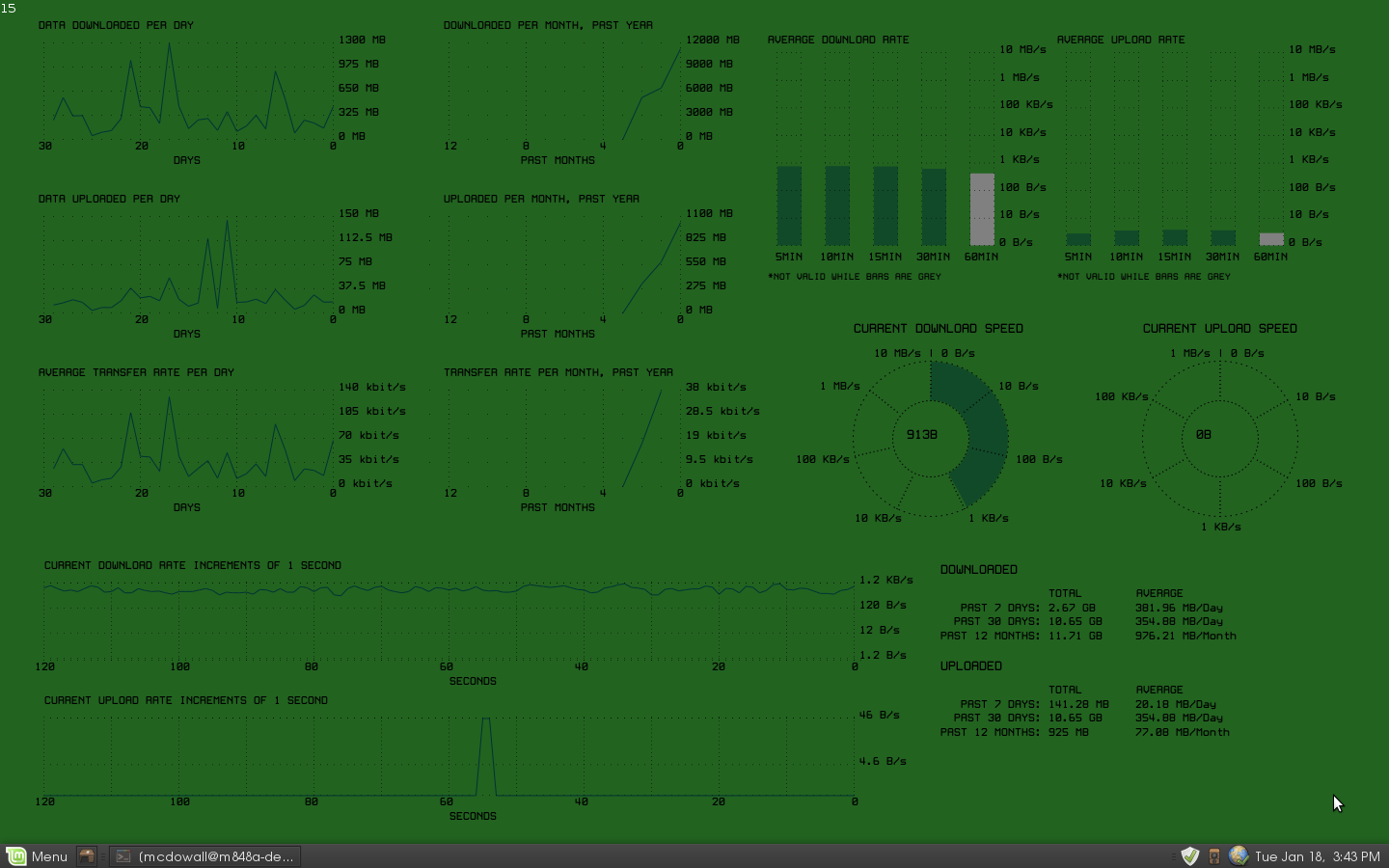
Conky system monitor

I wanted to get as much information about my system onto the screen using lua and conky. This is what I came up with


from this post
http://crunchbanglinux.org/forums/post/102809/#p102809

These setups are pretty complex and require some other things to be running such as vnstat.
NEW UPADTES! amazing!


Lua calendar

I think this is the most up to date code for the lua calendar
http://crunchbanglinux.org/forums/post/110725/#p110725

The standard way to get calendars in conky is by cal followed by some complicated regex to make the current day show up in a different color. Other than that you don't have much control over the layout and you have to use a mono font otherwise everything is out of line.

This calendar can use any font you like and still keep aligned. You can also control many other aspects of the calendar layout.

Sunday, December 26, 2010

Mayan calendar

UPDATE
I made the calendar much more readable by adding text labels around the rings like so:


I've just been cleaning up the code and found a couple of errors that have been corrected. You can find the code for the above here.

--Original post below-----------------------

I have been thinking about setting up a "year clock" using multiple rings showing progress in the year, month, day, hour, and minute. I had come up with some designs like so:


In this case the largest circle is the year and the dot on the circle is where we are in the year. The next largest circle is the month and the dot where we are in the month and so on. I had set it up so that everything moved in increments of 1 second. The right side shows what the set up would look like on midnight of December 31st. The nice thing about this clock is that it will never look the same twice in a year. However, it isn't exactly easy to read :)

Next I tried this:

Which uses similar mechanics as the clock above, but as you can see the rings are marked with information. Each circle rotated so that the current date/time was at the top of the ring. Unfortunately this clock proved to be extremely cpu intensive (it was actually pushing my cpu to 100%). I reoriented the circles to this:

But there was no was this script was going to be viable. But I liked the look of the above, with the rings within rings.

Then later I had the idea to try something else and this is what I came up with:

This is when things started looking very Mayan :)
In the above calendar clock, year is the innermost circle and instead of having the circles move I had indicators move around the circles. I also went on to add some system info indicators like so:


The code for the above is here.

Sector11 has also made some cool looking additions to the calendar part. You can see that here. I have a nice Mayan symbol dingbat font that may well be used in conjunction with my circlewriting script to add some glyphs to the calendar also.
I posted a perspective bar set up some time ago, and thought I would revisit a 3D approach. This is what I ended up with.


The bar rises and falls in relation to whatever conky output you feed it. The script can be found here.

It took a crash refresher course in basic trigonometry to get everything working and I can't guarantee that if you try the script it will work. The bar looks as I wanted it to, but I was hoping to be able to define simple coordinates and have multiple bars generated that all fitted together.

This didn't work out in this script as I the math I was using wasn't calculating the right perspectives for subsequent bars.
Updates, I have a couple of things that I've been working on recently.

First there is a amalgamated circle generating and circlewriting lua script.
It can do things like this:


And this is a little more complicated (obviously you can get whatever colors you want for rings and text I was just feeling monochrome when I made these.)


The intertwining effect is made by making different bits of the circle at different points in the lua script. In lua the later instances of cairo graphics are drawn above any earlier instances.

The script can be found here on the crunchbang Linux forum (where you can see a more colorful use of the script. It can also generate bars that can be placed and rotated freely.

Thursday, October 14, 2010

Splitting text into individual letters

One Lua trick that I use a lot is taking a string and splitting it up into individual characters which then get stored in a table.

I used this approach for my circle writing function and many other functions. This is how it's done.

You need the following function in the Lua script above the main function. I did not write this function and I cant remember exactly where I got it from but whoever did write it has my thanks!

function string:split(delimiter)
local result = { }
local from = 1
local delim_from, delim_to = string.find( self, delimiter, from )
while delim_from do
table.insert( result, string.sub( self, from , delim_from-1 ) )
from = delim_to + 1
delim_from, delim_to = string.find( self, delimiter, from )
end
table.insert( result, string.sub( self, from ) )
return result
end

These are the lines that split up the text...
text="text"
print (text) --> text

sub=string.gsub(text, ".", "%1|")
-- the above inserts "|" after every character
print (sub) --> t|e|x|t|

split=string.split(sub, "|")
-- the above splits the string whenever a "|" occurs and also deletes the "|"
the resulting split up characters are stored in a table called split in this case

slen=string.len(text)
-- slen is the length of the original text,
so will be the number of entries in that table "split"

so that:
split[1] = "t"
split[2] = "e"
split[3] = "x"
split[4] = "t"

now I can deal with each character individually.
I could give each character a different font, or a different color
or, in the case of my square font conky below, convert each character to the square font.

Square text conky

I had an idea for a conky. I wanted it to be extremely compact and involve text in different orientations. This is what I ended up with!


The problem was that I spent a long time looking for a square font. I found several fonts that I liked but when I came to rotate them and put rotated letters next to regularly orientated letters I found that none of the fonts were actually square. Non were the same width as height.

So I decided to make my own font using the Lua script. I had done something similar in my ascii text lua; a function that read each letter of the text I wanted displayed and converted the letter into ascii.

In this case I created my own square font out of the webdings font. With webdings a "g" gave me a solid color square, while "c" gave me a black square with a color outline. I simply constructed my letters using those blocks like so:

if letter=="T" then
font="webdings"
acrosst=across
downt=down
rotate=rotate*math.pi/180
cairo_translate (cr, acrosst, downt)
cairo_rotate (cr, rotate)
cairo_select_font_face (cr, font, CAIRO_FONT_SLANT_NORMAL, CAIRO_FONT_WEIGHT_NORMAL);
cairo_set_font_size (cr, fontsize);
cairo_set_source_rgba (cr, red, green, blue, alpha);
cairo_move_to (cr, 0, 0);
cairo_show_text (cr, "ggggg")
ldown=fontsize
cairo_move_to (cr, 0, ldown);
cairo_show_text (cr, "ccgcc")
ldown=fontsize+ldown
cairo_move_to (cr, 0, ldown);
cairo_show_text (cr, "ccgcc")
ldown=fontsize+ldown
cairo_move_to (cr, 0, ldown);
cairo_show_text (cr, "ccgcc")
ldown=fontsize+ldown
cairo_move_to (cr, 0, ldown);
cairo_show_text (cr, "ccgcc")
cairo_rotate (cr, -1*rotate)
cairo_translate (cr, -1*acrosst, -1*downt)
end
I actually really like the look of the resulting square "font". And everything fitted nicely together with no gaps :)

Go here to take a look at the code via the link. This is another really long script, mainly because of the letter conversion function. Originally I set up the function converting lowercase letters into upper case letters of the square font. But I didn't like the way they looked, so I re-wrote the letter conversion function to include converting uppercase letters to a different version of the square font.

I just used the lua command string.upper to make everything uppercase and fed it to the conversion function. I never bothered to delete the lowercase conversion lines :)

Final Fantsy VII

I am a big final fantasy 7 fan, so when rabidofx posted a FF7 themed conky, I immediately thought of the potential to turn the FF7 bottom combat panel into a conky display.

And this is what I eventually came up with!


I have tried to be as faithful as I can to the FF7 panel while still allowing the conky to function as a source of information.

It still needs some work and the script needs a good cleanup and improvements to make it more user friendly. You can get the code here at conky-pitstop! Or here on the crunchbanglinux forum. While your on the forum check out rabidfox's post directly above. He has modified ADcomps Adeskbar to look like materia slots (very nice!).

So why does it take 2200 lines of lua code to produce my FF7 panel conky?
Well 3 reasons... first because it's just a little messy. A lot of copying and pasting went on and I'm sure that I could comb through it an eliminate a large number of supurflouous lines :)

Second drawing in lua with the cairo library takes a lot of lines. To draw the blue shaded rectangles required this:
sa=5
sd=5
rh=120
rw=280
red=1
green=1
blue=1
alpha=1
pat = cairo_pattern_create_linear (sa, sd, rh, rw)
cairo_pattern_add_color_stop_rgba (pat, 0, red-1, green-1, blue, alpha)
cairo_pattern_add_color_stop_rgba (pat, 1, red-1, green-1, blue-1, alpha)
cairo_set_source (cr, pat)
cairo_rectangle (cr, sa, sd, rw, rh)
cairo_fill (cr)
I could have used less lines and specified the positions and colors etc in the actual pattern and drawing lines, but this way is just so much easier for fine tuning. I set the colors up like this becasue I kept forgetting which number represented what in the cairo_set_pattern lines! :)

The grey border around the blue was also line intensive.

Reason 3, and perhaps the main reason for the length of the script is the way you have to use cairo to display text. And if you look closely you will see that every piece of text has a black "shadow" ...which is simply the same piece of text, colored black and printed behind and offset a little.

font="Acknowledge TT (BRK)"
text=topl1
fsize=20
red=0
green=0
blue=0
alpha=1
across=32
down=22
cairo_select_font_face (cr, font, CAIRO_FONT_SLANT_NORMAL, CAIRO_FONT_WEIGHT_NORMAL);
cairo_set_font_size (cr, fsize);
cairo_set_source_rgba (cr, red, green, blue, alpha);
cairo_move_to (cr, across, down);
cairo_show_text (cr, text)
red=0.8
green=0.8
blue=0.8
alpha=1
across=across-2
down=down-2
cairo_set_source_rgba (cr, red, green, blue, alpha);
cairo_move_to (cr, across, down);
cairo_show_text (cr, text)
So I had to set the font, set the font size, set the red, green, blue and alpha, set the position, write the font, fontsize and color setup lines, move cairo to the coordinates and then tell it to diaplay the text. That gave me the shadow, then I had to change the color and position, set up the text drawing variables and draw the main text.

I kept this format throughout the script, so i could easily change colors and positions without wading through a sea of setup lines.

Saturday, September 11, 2010

Here is my latest conky configuration

conkybar!

and this is what it looks like currently:


Nothing out of the ordinary in terms of content over many other conkyrc generated displays.

But with a few differences.

The first thing is that every is generated in a lua script. The second is that those black triangles at the top are clickable buttons. Here is how this setup functions.


A while ago on the crunchbanglinux website a poster by the name of jpope had a wallpaper that had a large power button right in the middle of the screen. Here is the post:
http://crunchbanglinux.org/forums/post/45907/#p45907

ADcomp had written a python script to place a button on the desktop that would launch a command or script. The button could be placed anywhere and you could make your own icons for it to use and it could execute any command when you click it. It was all set up in the script.

I thought that was pretty cool and I stored it in the back of my mind.

Then recently I started looking into the file io function of lua, the ability to open files in the lua script, read their contents and store that as strings which could be manipulated in the script. I had been working on some bash scripts using curl to download information from webpages, then editing the html to pull out specific pieces of information.

I had been using the conky_parse command in lua to execute the bash scripts via conky, but I was trying to bring some of the operations into the native lua language to make the scripts run a little lighter cpu wise.

However, once I started playing around with the file io commands I realised that I could affect the whole lua script by having the script "watching" a text file and then editing the file, initially via a terminal command.

something like this:
$ touch /tmp/setw.txt; echo "1" > /tmp/setw.txt

the touch command creates the file then the > writes a "1" into the file.
a similar command could then easily ovewrite the "1" with a "2"

so if i had the Lua script watching that file I could put the output into a string and use the string as a basis for an if statement.

These are the lines that watch the text files in the lua script

wread = io.open("/home/mcdowall/conkyset/wset.txt", "r")
wset = wread:read("*lines")

I've changed the names and moved the files out of /tmp so they are persistant.

So now a simple:

if wset=="1" then
--display one thing--
end

if wset=="2" then
--display something else--
end

gives me interactive control over the script.

I then remembered the button script I had seen, and after some searching (and asking) I had the link to the script.

take a look at this entry on the ubuntu conky thread for more infomation on how the interaction works.
http://ubuntuforums.org/showpost.php?p=9826304&postcount=13840

The actual lua script can be found here. It is still very much a work in progress.
http://ubuntuforums.org/showpost.php?p=9830734&postcount=13855

The fact that everything has to be constructed in lua was itself a challenge. Lua doesn't have all the goodies pre-programmed into it like the objects you can get in a conkyrc by putting in the right command

The calendars were tricky. I saw londonali1010's post on lua calendars here
http://mylittledesktop.blogspot.com/2009/10/argh-my-first-snag-with-my-lovely.html

I looked over her code and borrowed a couple of lines (for calculating start day), but went about contructing the calendar in a very different way. The result was a calendar that looked very similar to the one available through a conkyrc. I'm still trying to perfect the day indicator however.

The biggest limitation to using Lua to construct a complete conky output is how it handles displaying text. It takes a lot of lines to get the tables you see in my output, far more than if I were to do the same thing in a straight conkyrc.

Anyway, I'm still working on the content of the conky but I am happy how the mechanics have worked out!

As it stands right now this setup is no more cpu draining than my regular all conkyrc setup. And when I have all the sections rolled up (except system monitor so that I can see the cpu usage) it runs much lighter. When a section is "rolled up" or inactive the lua script does not have to do any of the calculations or rendering for that section.

Sunday, August 29, 2010

Animated text conky.
Here is a concept for a conky that I have been thinking about for a while.


having the text in conky appear as if it were being typed.

The idea came a while back when I was thinking about how to get a better scroll function in conky, and I was working on a matrix rain themed conky. I thought it would be cool if you could get text in conky to appear like the text that appeared on Neo's computer in the movie.

I just hadn't done anything about it till now.

Thanks go to iggykoopa of the crunchbanglinux forum for his help with coding. Other wise the script would be very difficult to change. Now you can set up the script to display any text you like, when you like and where you like. It's still a bit tricky as you have to work out your timings for each section of text to appear, pause and vanish.

I have set it up so that you get the impression that a program is runing inside of conky, scanning your system and fetching the information.

You can get the code on the crunchbang linux forum here.

Saturday, July 31, 2010

My latest conky plots the position of the sun throughout the day. The Lua script also calculates and displays the sun's altitude and azimuth as it changes throughout the day. I had to get to grips with some equations and also get to grips with how to do those calculations in Lua.

The conky has 2 scripts that make it work.
Firstly there is a bash script that uses the curl function to access a webpage. Then using grep, awk and sed I extracted key astronomical data from the page.

The Lua script is then fed the data via conky and uses the numbers to perform all the necessary calculations. I also display a range of data in the conky via the Lua script.


The figure is all based on equations which are in turn based on the data I gathered. The figure shows a very accurate representation of the position of the sun relative to the horizon.

You can get the code for the bash and Lua script on the crunchbang linux website here.

If you are interested in using this conky then be sure to read my post as you will have to make some changes to the scripts regarding geographical location.
Here is a new conky/lua setup from me.

This is based on a wallpaper created by the ever talented gutterslob which he posted on the crunchbang linux website here.

This was posted back in March and I said at the time that it would make a great conky but I never went any further than that. Then recently I saw someone else on the crunchbang site post a screenshot using the wallpaper and, as I had some time to kill, I started making a conky display based upon it.

This is how it turned out (everything is labeled in the picture)


The code is on the crunchbang website here.
The code is ugly, overlong, overcomplicated and far from user friendly. The Lua script is an amalgamation of bits of previous lua scripts with modifications but I have yet to go through the code and clean it up.

There are some innovations. I think my clock turned out quite nicely and I haven't seen a clock like that before. I also liked the idea of a wordless/numberless figure (which this is)

Also my upspeed and downspeed bars, while seemingly simple, display speed as a percentage of total possible speed (determined via speed testing). The lua script can differentiate between bytes, kilobytes and megabytes per second (that is output by the conky object upspeed for example) and calculate speed in a single unit which makes this possible.

Tuesday, March 16, 2010

I haven't been very active conky wise lately and it looks like I won't be able to spend much time in the future on conky/Lua tinkering either.

I have projects that are going to be keeping me busy. But hopefully I will have a few hours here and there to play!

I've still got lots of good ideas about things to do with Lua/cairo scripts, but as the scripts get more complicated they also take longer to write and test.

I guess I'm entering a mostly retired state as far as conky goes.

Saturday, March 6, 2010

Numbers to text conversion functions.
Code available on the crunchbanglinux forum here.


I have written 3 functions for converting various numbers to text representations.
The first function converts any regular 3 digit or lower number into words, so that:
19 becomes "nineteen" and 487 becomes "four hundred and eighty seven"
I have used this function in the third line in the image above to convert the output of $cpu to words.

The second function converts number dates into text, as in the first line in the image above.

The third converts time data to words as in the middle line above. This function takes into account all the changes that occur with displaying the time as words. For example at 6:01, the function will output "one minute past six". At 6:02 it will be "two minutes past six". At 6:00 it will show "six o'clock" etc. You can choose between having seconds represented or not.

I intend to use these functions with my circlewriting functions to create a text only, non-linear display along the lines of this:


here is what it looks like when its working:

Monday, March 1, 2010

UPDATE. I have made the perspective drawing function configurable and posted the code on the crunchbanglinux website here. The code there displays the following graphic.


Because everything is based off of equations (which are themselves based off just a few key pieces of data), you can easily use the settings to alter the look of the bars like so:


In this case the red bar is cpu usage.
The green is memperc.
The blue and yellow bars show the percent used of my hard disk drives.
There is a maximum of 6 bars assignable. For more bars the Lua script would have to altered to add them manually.

ORIGINAL POST

I have also been thinking more about creating more isometric figure drawing functions. I put together this one a little while ago. While it does look cool, it clearly does not reflect any kind of reality of how a 3D shape would look from a fixed perspective (which is what isometric means).

So I thought about trying to create a more realistic looking figure. I knew it would involve the use of perspective, but I had no idea about how to create the effect or the mathematical principles behind perspective.

So I turned to google and one of the first things I came across was this video.
That gave me a basic understanding of how the effect was achieved. But I didn't want to simply draw a figure using fixed coordinates (that would have been far too easy), I wanted to have a isometric figure that could be configured through settings.

I had to rapidly re-aquaint myself with the mathematics of triangles!

This is what I ended up with. It takes the output from the previous cpu recording and averaging function.


The largest, whitest bar is current cpu usage, then the next bar is 1 minute, then 5, 15, 30 and 60 minute averages. The darker bars are all low because the conky had not been running for long before I too this screenshot.

You could feed each bar anything you wanted, the first could be current CPU followed by memperc etc. Currently (and for the foreseeable future) to add or remove bars is a manual process. Perhaps someone with more mathematics and coding skill than me could "automate" the drawing process with "for i=numberofbars do".
A poster by the name of dbro posted a conky config on the crunchbanglinux forum that had an interesting idea about recording data over time and then displaying the data as averages for a period of time via bars.

I took a look at his Lua script but I couldnt work out how it worked :)
I also thought his bars were confusing. I think it was partlly because of the way he was using the Lua script with conky. He wasn't using cairo to display the bars but parsing the Lua script and then creating bars via the $hr conky object.

I liked the idea of being able to compare computer usage now, to avergae usage over a set time period, so I took dbro's idea and applied my own logic and code to achieve this end. This is what I came up with:


The code is here on the crunchbanglinux website. Here you can alse read a little about the evolution of this script and in dbro's post below he sets out a less intensive way to achieve the same result. I have yet to try and implement dbro's method but the cogs are turning as to how I would apply it.

Saturday, February 27, 2010


Another, and most likely the last, variation on my valentine flower Lua script and a final entry in the conky of the month competition on the conky blog.

The biggest change here is the use of shading to the flower petals. Also I changed the shapes that were transformed by the output of the various conky objects so that there is no overlap. I think these changes have added quite a bit of eye-candy value to this conky and the effect was quite simple to apply.

The hearts were also drawn with cairo in the Lua script and shaded to match the flowers. Luckily I had a heart shape already on file from my first flower conky. I tweaked it a bit for shape, inspired by a wallpaper I found here.

I made an option to change the number of petals for each flower, but I didn't factor in how this would affect the shading. As a result changing the number of petals alters the shading effect. This should be easily fixed however if I feel like working on the script some more.

As ever, the code is posted on the crunchbanglinux forum here.

Thursday, February 25, 2010

Text Blur and shadow.


Here is a simple script to add a blur like effect to text and numbers.
It can also be used to make shadows for text.

Here is a comparison of the blur effect in use and text without the effect.


The effect works by taking multiple instances of the same text, making them mostly transparent and then overlaying them with a slight offset for each instance. In this case I am displaying the text at various points around a very small circle.

Like so:


The blur effect uses a much smaller circle and calculates transparency by the number of instances of the text you want.

You can get the code from my post on the crunchbanglinux forum here.

Wednesday, February 24, 2010


I took my line graph Lua script, tweaked it a bit and produced the above.
The FSY "heartbeat" blip shows the filesystem used percent, then 1/4 of fsys used.

The MEM goes up to current memory use, stays there for two cycles then goes back to zero.

You can get the code here.